Batching means doing each kind of task once for the whole month instead of once per post. You settle all the topics, then write all the text that goes on the images, then build all the graphics, then write all the captions, then schedule. For twelve posts, which is three a week, that fits into about three and a half hours, provided the topics and photos are ready when you sit down. Expect the first session to run longer than the ones after it.
Why Working in Blocks Is Quicker
A post made on its own carries setup you do not notice: opening the design tool, finding the template, remembering which font you used last time, deciding what to say. Make twelve posts separately and you pay for that setup twelve times. In a batch you pay once per kind of task, and posts made side by side end up looking related.
What batching does not cover is anything live: Stories from the day, replies to comments, news.
Before the Session: Topics, Dates and Photos
Do this a day or two earlier. It takes around half an hour and it is what makes the afternoon possible.
- Count the posts. Three a week is twelve or thirteen in a month. Fewer is fine.
- Choose the topics, one line each. If you need a way to generate them, use the five pillars in our guide to content ideas for small business.
- Give each topic a format: a single graphic, a photo post or a carousel. A carousel is several graphics, so keep it to three or four in a month, and to ten slides or fewer if you will schedule it from a computer.
- Mark the fixed dates first. A launch, a market day, a holiday your customers care about, an anniversary.
- Collect the photos in one album or folder. If a topic has no photo, take one before the session or swap the topic.
- Collect the facts: dates, opening hours, product names, a review you have permission to quote.
The Afternoon, Block by Block
| Block | Time | What you have at the end |
|---|---|---|
| 1. Plan check | 15 minutes | Twelve topics in date order, each with a format |
| 2. Words for the graphics | 40 minutes | Every headline and slide text, in one document |
| 3. Design | 80 minutes | Every graphic, in one design file |
| 4. Captions | 50 minutes | Twelve captions with their hashtags |
| 5. Export and schedule | 30 minutes | Files named by date, queued or filed |
Treat the times as a budget, not a promise. When a block's time is up, move on and come back to the leftovers at the end.
Write the Words Before You Design
Open a document, not the design tool. Under each date, write the text that will sit on the image: a headline of six to ten words for a single graphic, and a headline plus one line per slide for a carousel.
The order matters. A layout goes quickly when the words already exist. With the whole month on one page you can see repetition, such as four headlines that all begin with "How to". And spelling gets checked once, before it is baked into twelve images.
Fill the Templates in One Sitting
Pick three or four layouts for the whole month. For example, a text-led tip, a photo with a headline, a carousel slide and an announcement. Twelve posts built from four layouts look like one account.
Use one design file for the month, one page per post, with the posting date in the page title. Set your colors and fonts on the first page of each layout, then duplicate that page for every post that uses it. The mechanics of swapping text, photos and colors are in the guide to editing a Canva template.
Work layout by layout, not date by date. Do all the tips, then all the photo posts, then the carousels. Drop in the words and photos first, and fix spacing and line breaks across all the pages in a second pass.
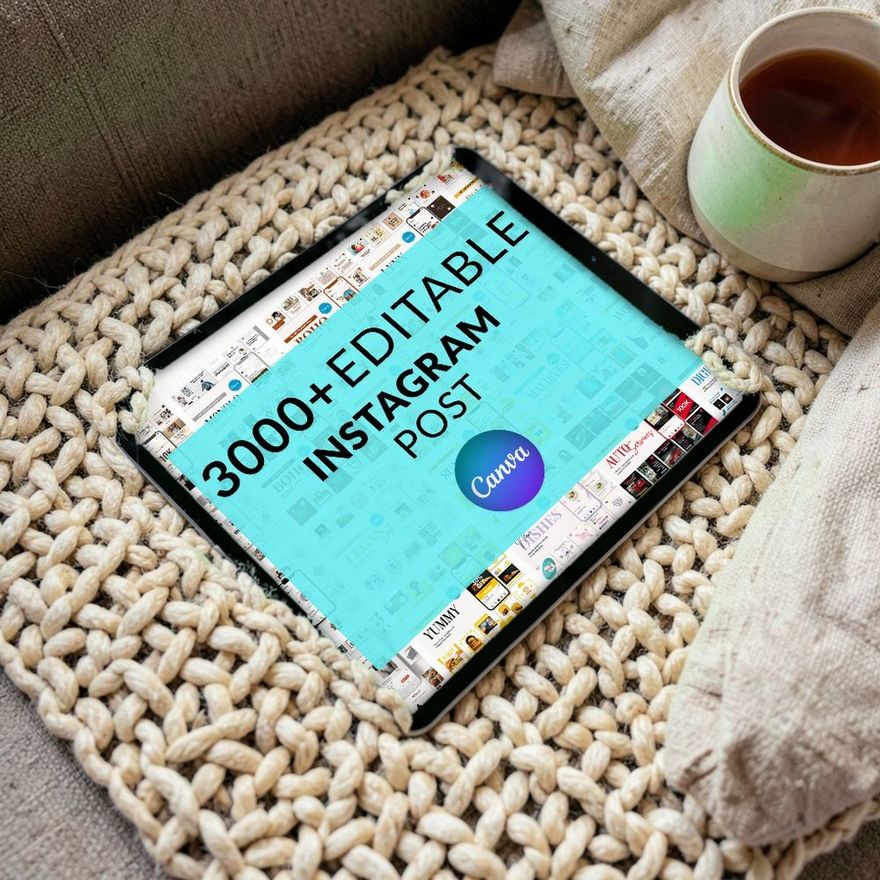
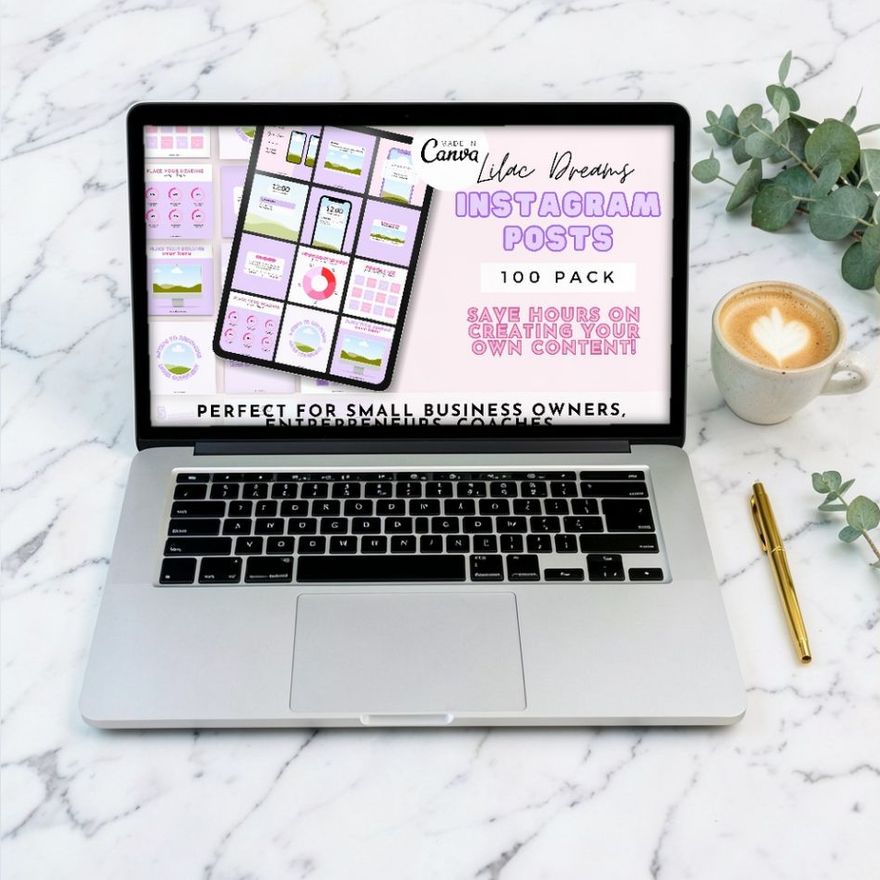
A month built from one pack stays consistent with no extra effort. Going by their names, the first two sets below are large ones, and you will use only a small corner of either: choose your few layouts and ignore the rest.
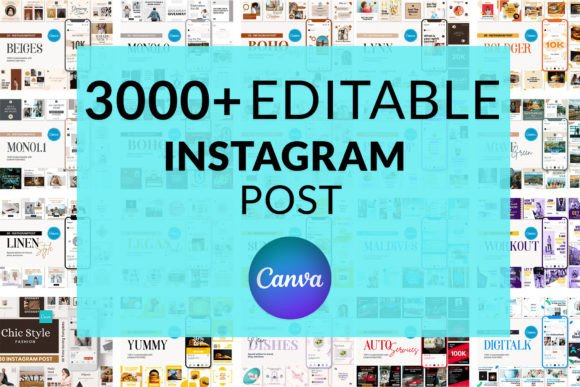
3000+ Instagram Post Templates
See the listing ↗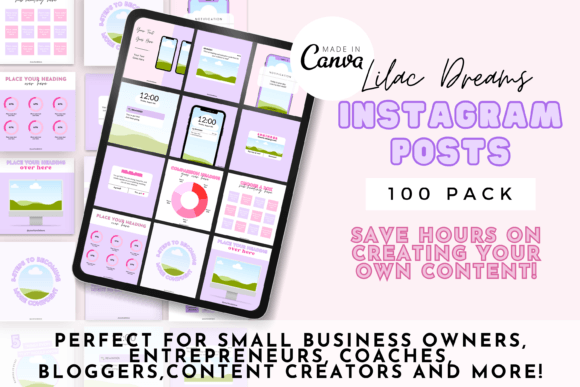
100 Editable Instagram Post Templates
See the listing ↗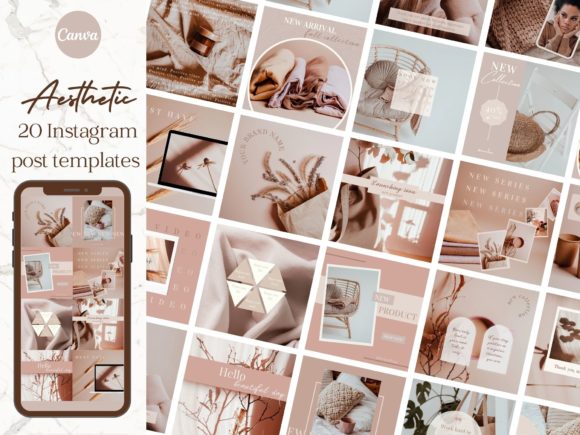
Aesthetic Brand Instagram Post Templates
See the listing ↗From the collection Instagram Post Templates. New Creative Fabrica members get 10 free downloads, and any of these can be one of them.
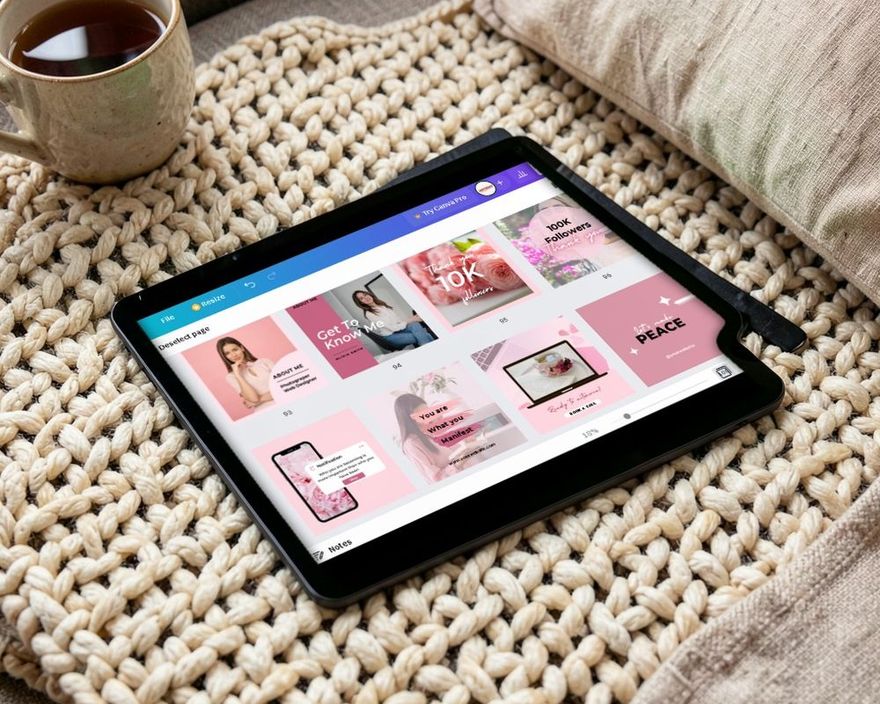
When every page is filled, switch to Canva's grid view, which shows all the pages side by side, and drag them into date order. Two identical layouts in a row are easy to spot and swap. If your profile follows a row pattern or a puzzle feed, this is the moment to check that the order holds.
Write the Captions Together
Go back to the document and put each caption under the same date heading as its on-image text. Write in layers, as you did with the graphics:
- All twelve first lines.
- All twelve bodies.
- All twelve closing lines.
Seeing the closing lines side by side shows you whether every post ends with the same request. Vary them: a save here, a question there, a booking prompt on the service post.
For hashtags, prepare two or three small sets, one for each topic you return to, with three to five tags in each. Five is Instagram's limit for a post, so there is no reason to collect more. Paste the matching set and adjust a tag or two for the post.
Put a marker such as "[CHECK]" next to anything that might change before the posting date, like a delivery day or a stock level. The structure of a caption itself is covered in our guide to writing Instagram captions.
Export, Name and Schedule
Export graphics as PNG and photo posts as JPG. Name each file with its date first, such as "2026-11-03-watering-tip", so the folder sorts itself into posting order. Canva helps here: several pages download as one ZIP file, and the images inside are named after their page titles, so pages titled by date arrive as dated files. Put each carousel in its own folder with the slides numbered.
For scheduling there are three kinds of tool:
- Instagram itself. The Help Center describes scheduling from the app for any public account: reels, photos and carousel posts, up to 25 a day and up to 30 days ahead. After you add the caption, tap More options, turn on "Schedule this post" and pick a date and time. The queue sits under "Scheduled content" in the profile menu, where each item can be edited, rescheduled, deleted or shared now. Stories are not on the list, and Instagram notes that product tags and collaborative posts do not work with scheduled content.
- Meta Business Suite, Meta's free tool for a computer or its own phone app. It schedules posts, Reels and Stories to a connected Instagram account and shows them in a calendar called Planner. Meta's help pages give two limits: a post to Instagram can carry 10 photos, and a Story upload takes up to 10 photos or videos at a time. They do not say how far ahead you can schedule. Third-party guides commonly report 75 days for posts, so trust the date picker over any number you read.
- Third-party schedulers and the planners built into design tools. Features and free limits vary. Canva's Content Planner, for one, is reserved for paid plans, publishes to an Instagram business account, and has to be used from a desktop browser when the destination is Instagram. Some tools publish for you, and others send a reminder at the set time and leave the last tap to you.
The 30-day window of the app matters for a monthly batch. Schedule on the last day of the month and the next thirty days fit; do it two weeks early and the last posts fall outside the window and have to be added later.
Whichever you choose, check what it can schedule for your type of account, because single posts, carousels, Reels and Stories are not always handled the same way. Schedule one test post before you trust it with the month.
You can also batch with no scheduler at all. Keep the dated files in an album, the captions in the document and a reminder on your phone. Posting then takes a couple of minutes, because every decision has already been made.
A bundle made for Canva is a practical base for this kind of month. The three below are named as bundles, two of them for a particular trade.
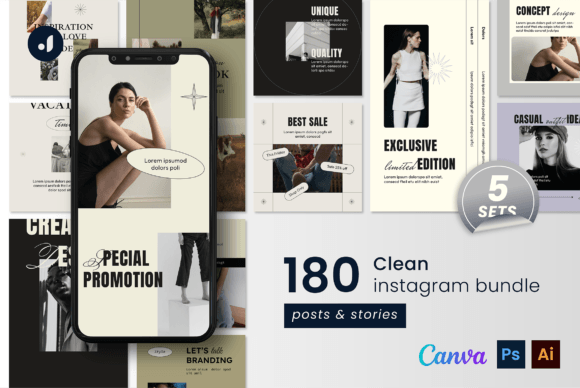
Clean Instagram Bundle
See the listing ↗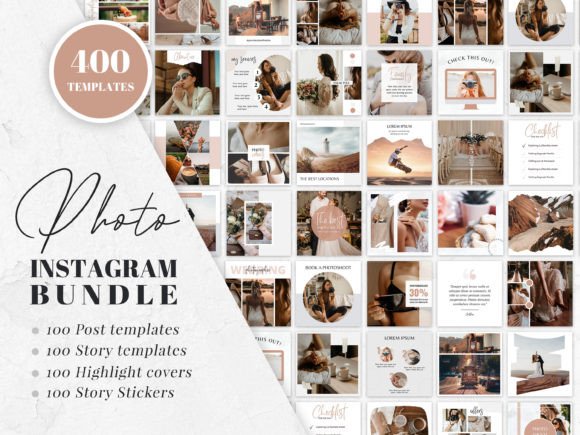
Photographer Instagram Bundle
See the listing ↗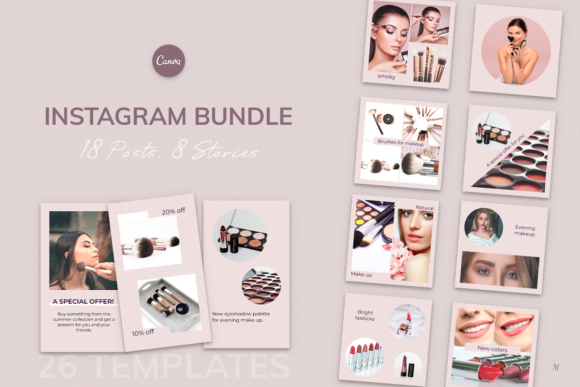
Instagram Bundle. Universal Beauty Canva
See the listing ↗From the collection Canva Instagram Templates. New Creative Fabrica members get 10 free downloads, and any of these can be one of them.
Leave Room for Timely Posts
A full queue still needs room for the week as it happens.
- Keep a slot open. Plan three posts a week and allow yourself a fourth when something happens.
- Leave Stories live. They are where the day-to-day belongs. Our list of Instagram story ideas has formats that take minutes.
- Review the queue once a week. Five minutes is enough to catch a product that sold out, a date that moved, or a post that would land badly this week.
- Be around after a post goes out. A scheduled post still needs someone to answer the comments.
Keep three or four finished posts with no date on them: a tip, a quote, an answer to a common question. When a planned post has to be pulled, one of these takes its place and the week stays whole.
A Corner for the Missing Photos
The planning step asks for a photo for every topic, and some will have to be taken before the session. A fixed spot with the same light and background keeps those shots consistent with each other.
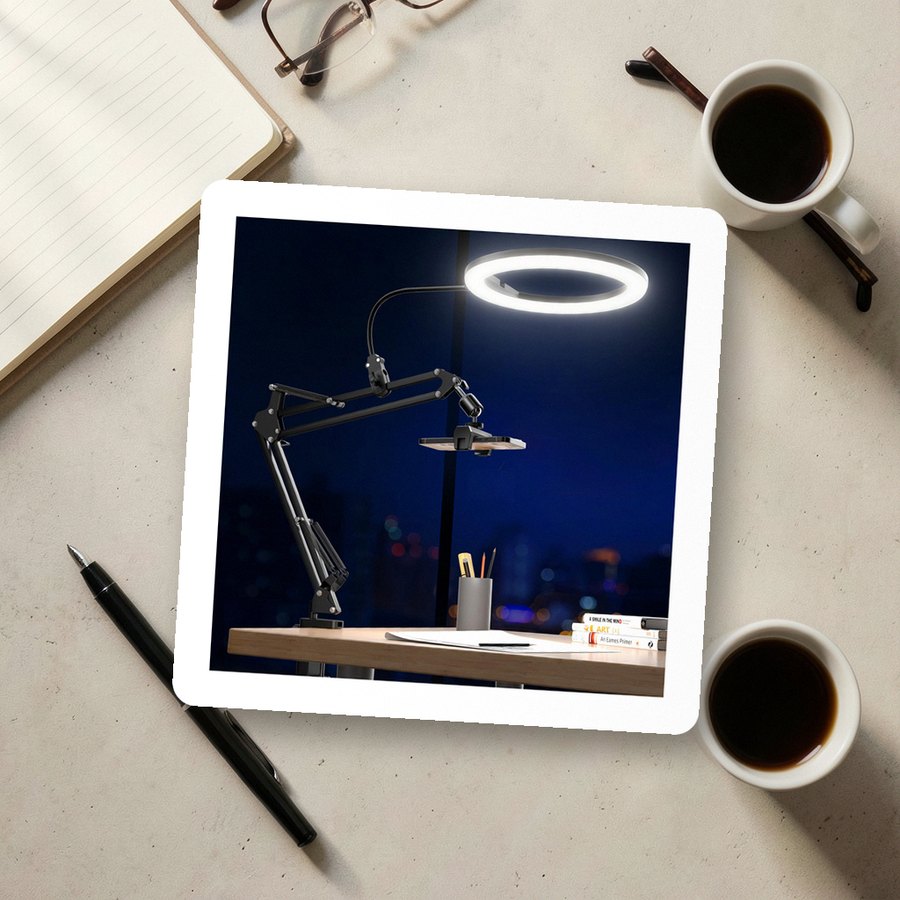 Ring light with overhead phone mountUBeesizeSee it on Amazon
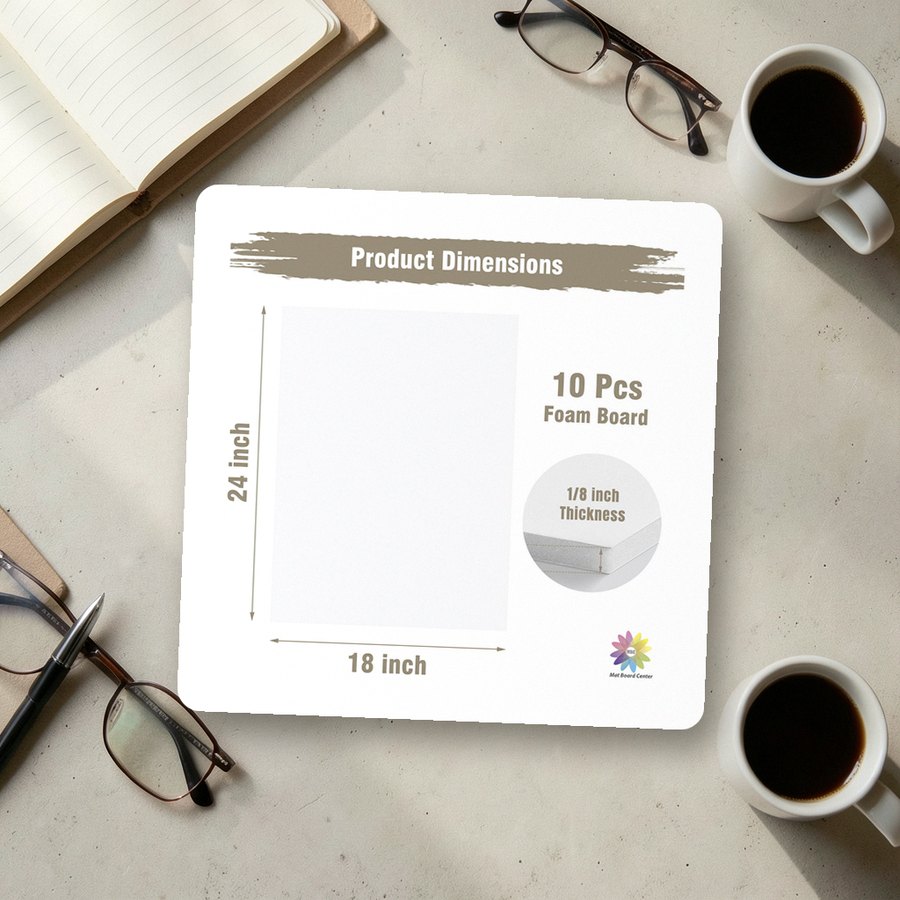 White foam board for backdrops and bounce lightMBC MAT BOARD CENTERSee it on Amazon
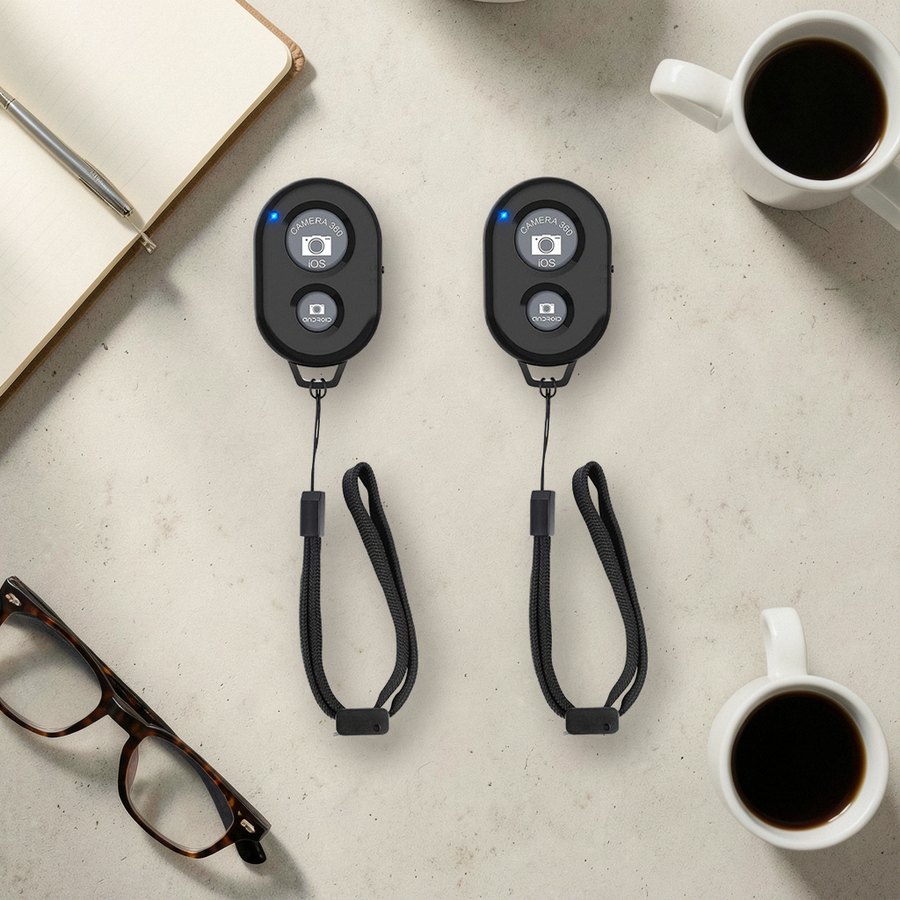 Wireless remote shutter for phonesZttopoSee it on Amazon
As an Amazon Associate we earn from qualifying purchases.
Make the Next Session Easier
Right after the session, note which block ran over and adjust the budget for next time. Then set up the shortcuts:
- Duplicate this month's design file as the starting point for the next one. The layouts, colors and fonts are already in it.
- Save the caption document as a template, with the date headings and hashtag sets left in.
If you have not chosen a template pack yet, do that before the afternoon, not during it. Creative Fabrica gives new members 10 free downloads, which is enough to compare a couple of packs and settle on one. Then put the session in your calendar, with the half hour of topic planning a day or two before it.
Collections That Fit This Article
Instagram Post Templates8 hand-picked · open the collection →Canva Instagram Templates8 hand-picked · open the collection →