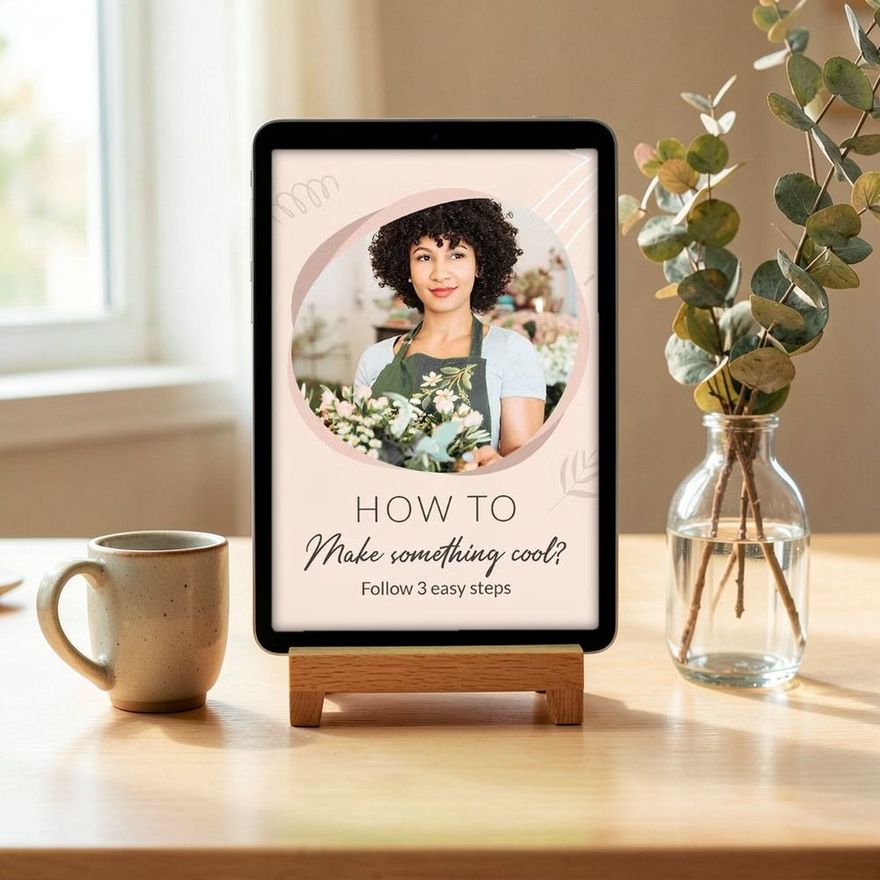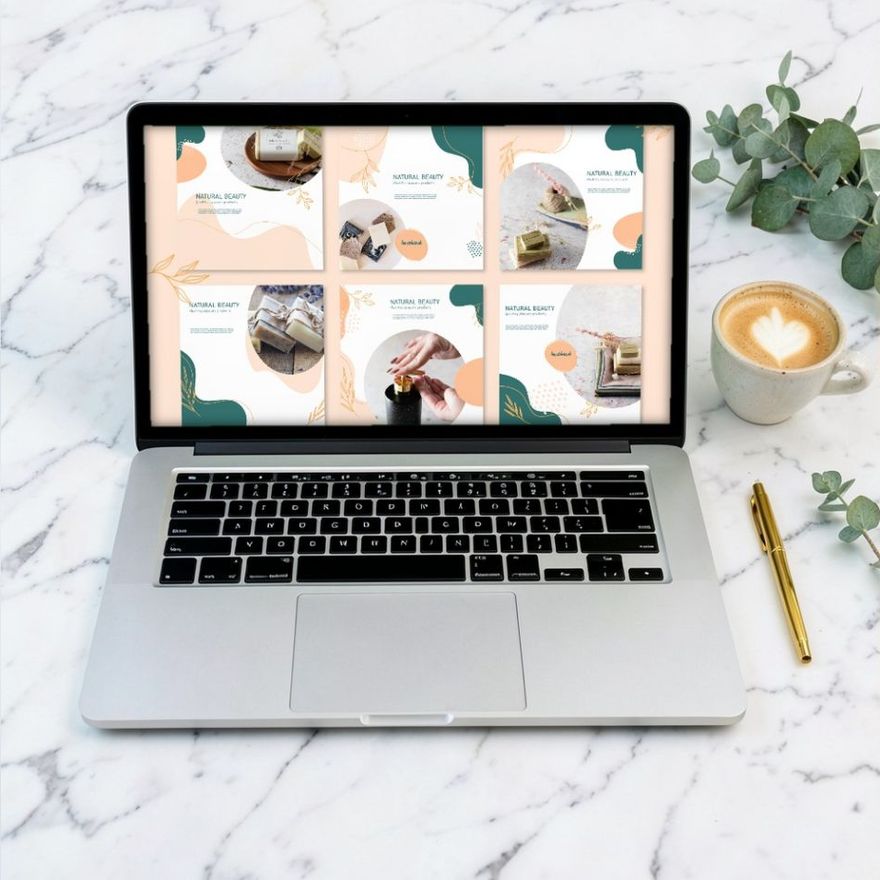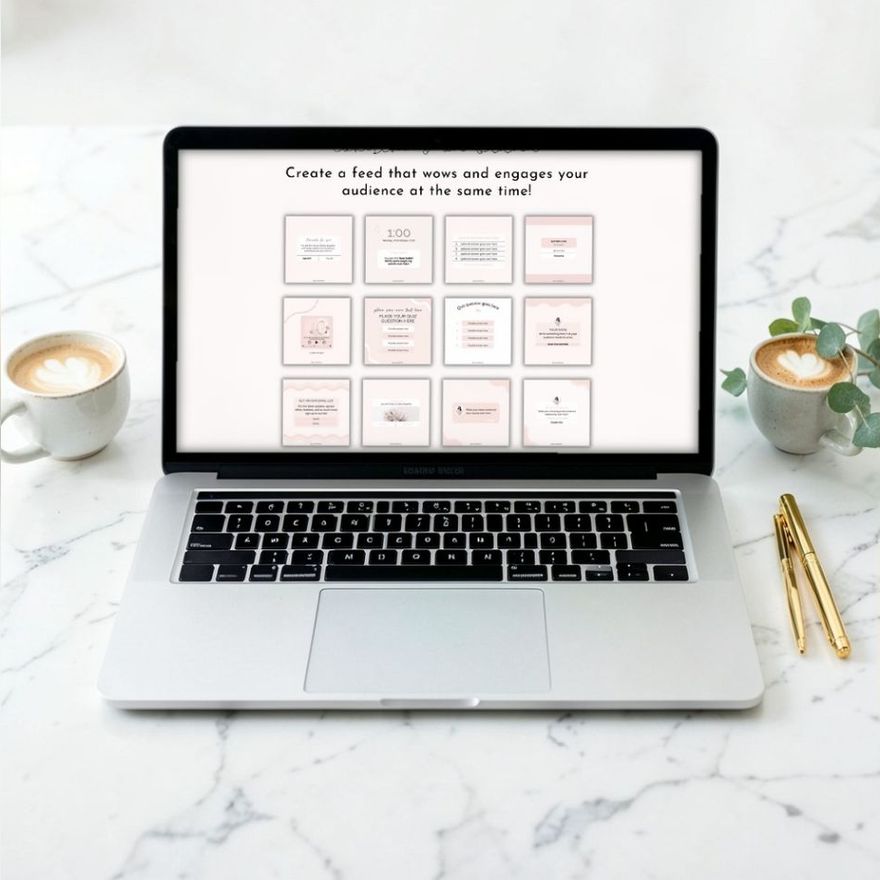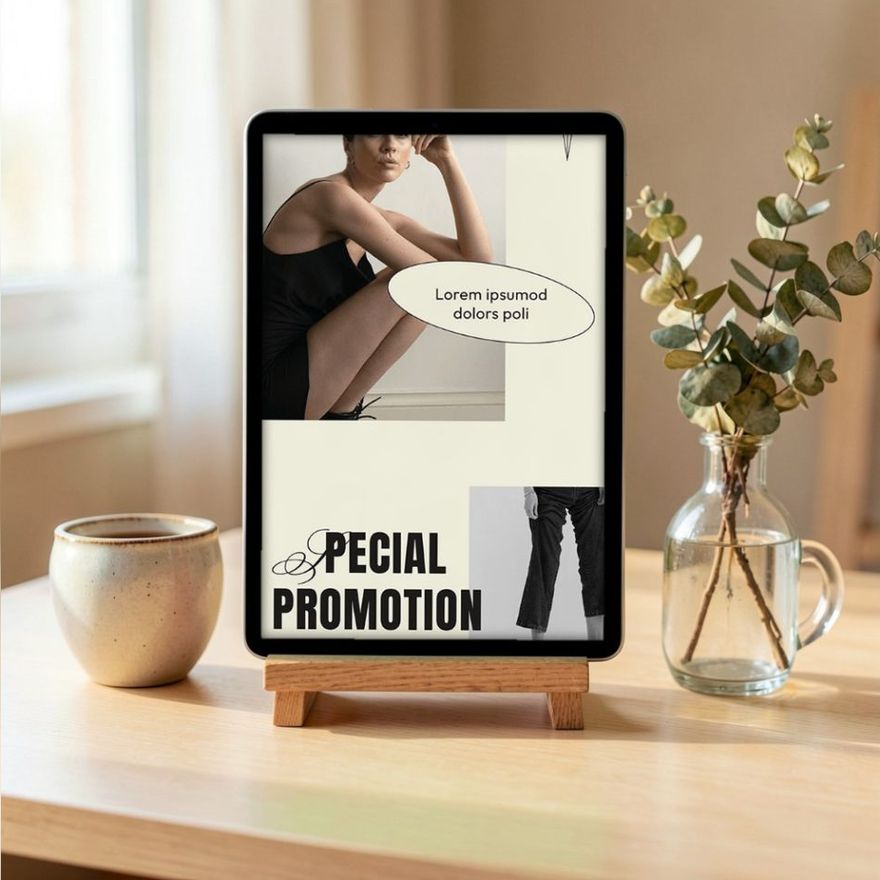
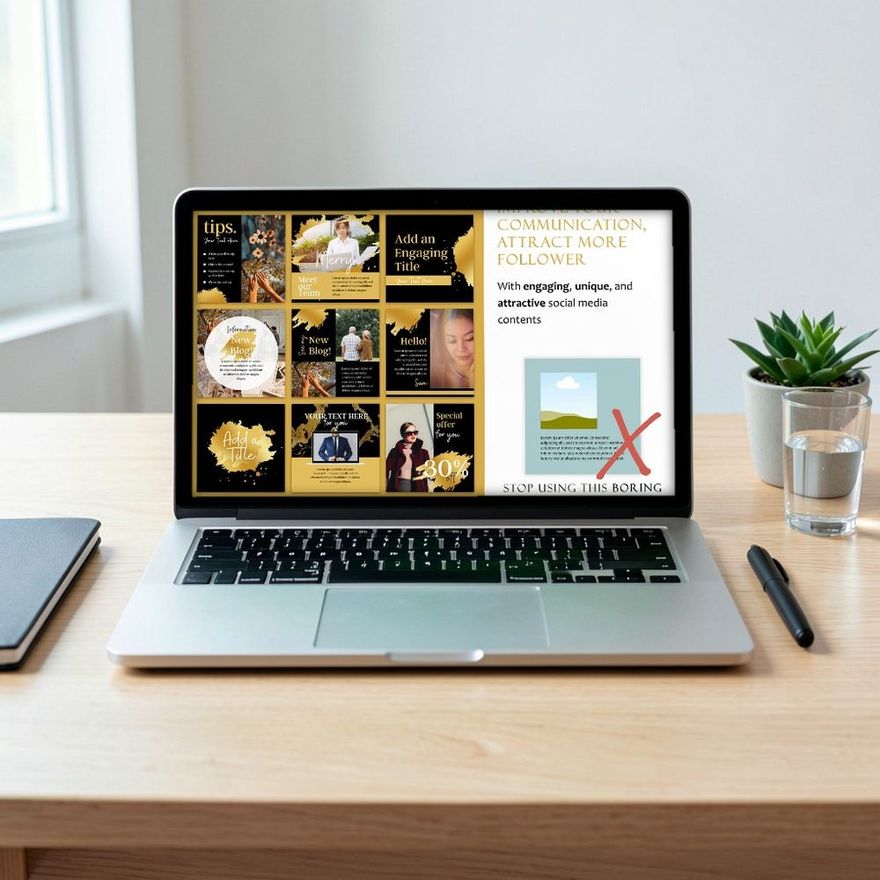
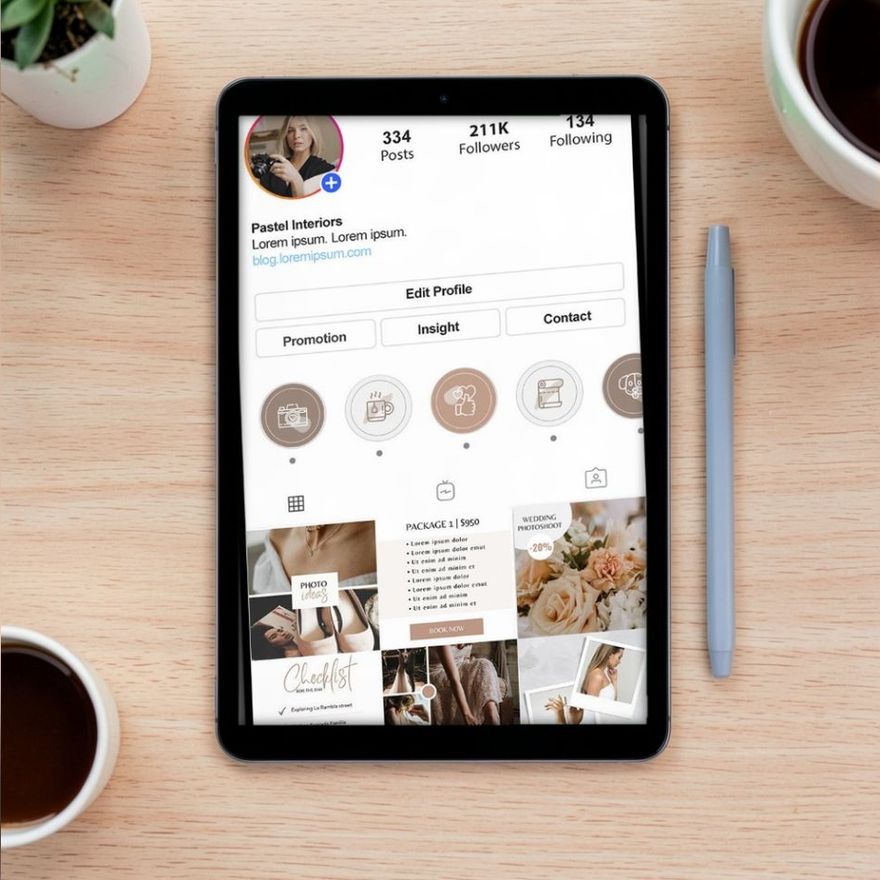
A Canva template bought or downloaded from a marketplace is usually not a design file. It is a PDF, sometimes inside a zip folder, with a link in it. The link opens the design in Canva and saves a copy to your own account. After that, editing comes down to five things: swap the photos, rewrite the text, switch to your colors and fonts, resize if you need another format, and export.
What Is Actually in the Download
Open the folder and look for a PDF with a name like "template link", "access" or "read me". Inside is a button or a line of linked text. Some sets have several links, for example one for posts and one for stories.
Three things trip people up at this stage:
- The zip is not unpacked. Extract it first. On an iPhone, tapping a ZIP file in the Files app unpacks it into a folder. On Android, the Files by Google app has an Extract button.
- The link is not clickable. Some mail and preview apps show a PDF as a flat picture. Open it in a browser or a proper PDF reader.
- There is no editable file in the folder. That is normal. The design lives in Canva, not on your disk.
Keep the PDF. It is your way back to a fresh copy if you ever wreck the one you are editing.
Open the Link and Make Your Copy
You need a Canva account, and a free one is enough to open a shared template. Canva's Help Center puts it this way: making a template link is a paid-plan feature for the designer, but once the link exists, anyone can view the design and use it as a template. Log in to Canva first, in the same browser, and then click the link in the PDF.
Canva shows a preview of the design with a button to use the template. Clicking it creates a copy in your account. The designer's original is not touched, and nothing you change is visible to anyone else.
Rename your copy straight away, with the set name and the word "master". On a phone, the link may open in the Canva app or in the browser; either works, though the first setup is easier on a larger screen.
Sets made for Canva say so in the name, which is the first thing to check if you want to edit this way.
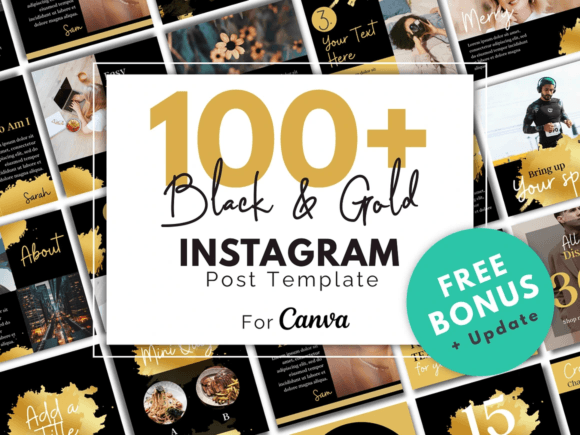
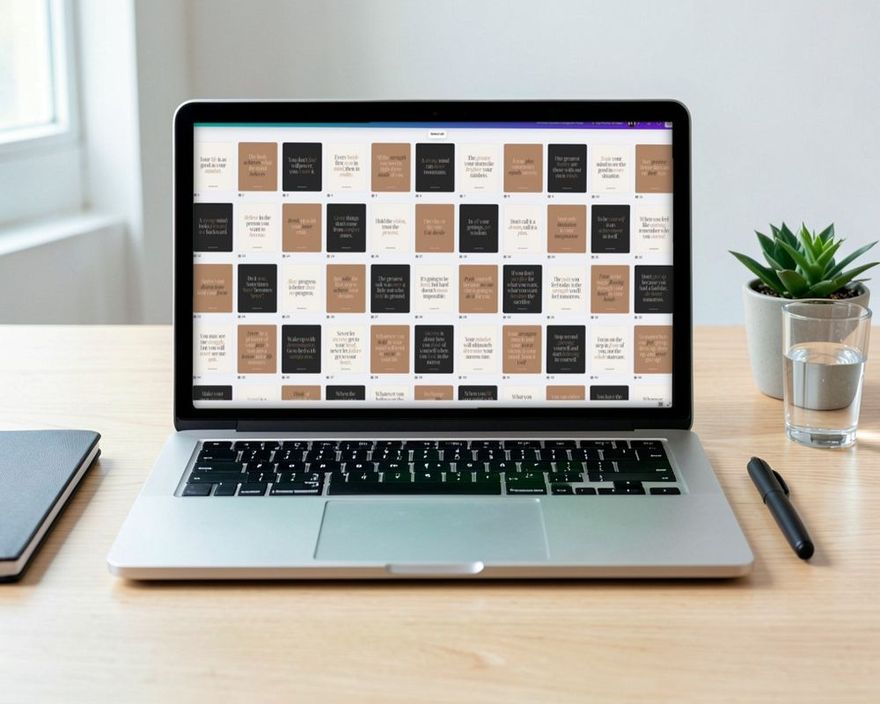
Gold Canva Social Media Template
See the listing ↗
Bookstagram Canva Social Media Templates
See the listing ↗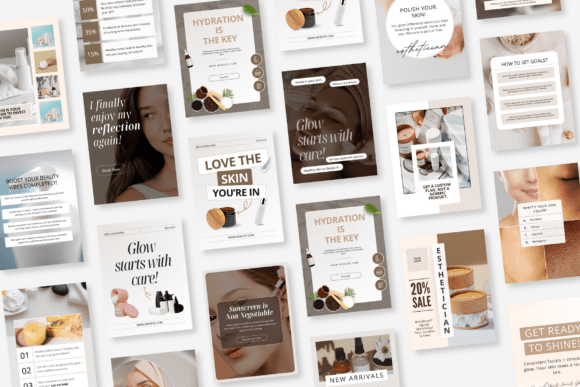
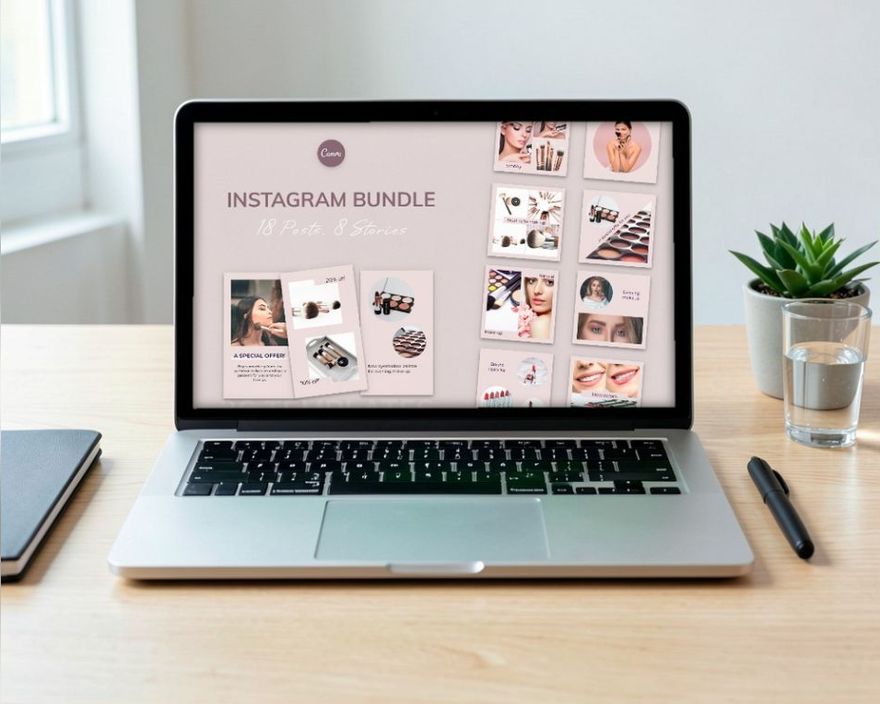
Skincare Canva Social Media Bundle
See the listing ↗From the collection Canva Instagram Templates. New Creative Fabrica members get 10 free downloads, and any of these can be one of them.
Replace the Photos
Most photo spots in a template are frames: shaped holes that hold an image. Upload your own photo, then drag it over the frame until it snaps into place. The frame crops it automatically. Double-click the photo to drag it around inside the frame, or pull a corner handle to enlarge it, and select Done to finish. On a computer you can also right-click the frame and choose "Replace image".
If a photo is not in a frame, select it, delete it, and place yours in the same position and layer. The Position button on the toolbar moves the new photo behind the text again.
Choose photos that suit the layout. If the template has text on the left half, pick a photo whose subject sits on the right. A busy photo under a headline is the most common reason an edited template looks worse than its preview.
Rewrite the Text
Double-click any text box and type. The useful discipline is to keep your text about as long as the placeholder. The designer set the font size and the box width for that many words.
If your headline is too long, cut words before you shrink the font. A headline that drops from size 90 to size 48 to fit a long sentence stops being a headline. Check where the lines break, too: a single word alone on the last line looks unfinished, and nudging the box width usually fixes it.
Switch to Your Colors and Fonts
Select a shape or a text box and click its color tile in the toolbar. The color panel opens; choose a color there, or select "Add a new color" (the rainbow tile) and type a hex code such as #1F3A5F for an exact match. Canva then lets you replace that color across the "Current page" or "All pages". Use it. Recoloring thirty pages by hand is how one page ends up a slightly different pink.
If an element shows no color tiles when you select it, its colors cannot be changed; swap it for another element.
Hold yourself to two or three colors and a neutral. The template was designed with a limited palette, and it keeps its structure only if yours is limited too.
Fonts work the same way: select the text, select the font name on the toolbar, choose another. Two fonts are enough for almost any post, one for headlines and one for everything else. Our guide to Canva font pairings lists combinations that hold up at phone size.
Canva can also store brand colors, fonts and logos in a Brand Kit. On the free plan that means one color palette with up to three colors; setting brand fonts and keeping more palettes (up to 100, with 100 colors each) belongs to the paid plans. Three colors is enough for most templates. For the fonts, the low-tech approach works: keep a note with your hex codes and font names.
Free and Pro Elements
Canva's library has free content and content reserved for paid plans. A template may use either. Pro elements are marked with a crown icon, and on a free account they carry a watermark, a criss-cross pattern, until they are paid for. At download time Canva then offers to sell a license for the element, to upgrade your plan, or to give you a watermarked draft.
You have three options when you meet one:
- Replace it with a free element or with your own upload. In the Elements search, the filter has a Price setting with Free and Pro.
- Delete it, if the layout survives without it.
- Leave it, if you have a paid plan anyway.
Many listings state whether the template works with a free Canva account. Read that line before you download, not after.
Resize for Another Format
Canva's one-click tool, the Resize button in the editor's menu bar (Magic Resize), is listed in the Help Center for paid plans only. The free route takes a few minutes more:
- Create a new blank design at the size you need: on the Canva home page choose "Custom size", set the unit to px and enter, for example, 1080 x 1920 for a Story. Canva accepts anything from 40 to 8000 pixels a side.
- Go back to the original page, select everything on it and copy.
- Paste into the new design.
- Rearrange. A taller canvas needs the elements stacked with more space between them, and text moved out of the areas the app covers.
Do not simply stretch a square design to a tall canvas. Photos distort and text ends up under the interface. The exact numbers for each format, and where the safe areas are, are in the guide to Instagram post sizes.
Export for Instagram
Select Share, then Download, and pick a file type:
- PNG for designs with text and flat color. Canva describes it as best for graphics.
- JPG for designs that are mostly photograph. It gives a smaller file.
If the design has several pages, choose between "All", "This Page" and "Custom" to download only the ones you want. Several pages arrive as one ZIP file named after the design, with the images inside named by page number or page title, which is exactly what you need for a carousel. A design downloads at its own pixel size by default, so a 1080 x 1350 page gives you a 1080 x 1350 file.
A few download options are reserved for paid plans: a transparent background, SVG, the size and quality controls, and a compressed file. A plain PNG or JPG for Instagram needs none of them.
Before you post, open the file on your phone at full size. Check the smallest text and the edges of the photos. What looked fine on a monitor can be too small in the hand.
Keep a Master and Work on Copies
Never edit your only copy. Duplicate the master design, or duplicate a page inside it, and work on the duplicate. A simple system is one Canva design per month, with one page per post and the posting date in the page title.
This is also what makes planning ahead quick. Once the colors and fonts are set on the master, each new post is a duplicated page with new words and a new photo; the process is laid out in the guide to batching a month of Instagram content.
One note on licenses. A template is generally licensed for making your own posts, not for passing the template itself on or reselling it. The terms are on the listing; read them if you make content for clients.
If you have not picked a set yet, the Canva Instagram templates collection is the place to start, and Creative Fabrica gives new members 10 free downloads, which is enough to try the whole process once before you commit to a style.
Collections That Fit This Article
 Canva Instagram Templates8 hand-picked · open the collection →
 Social Media Post Templates8 hand-picked · open the collection →