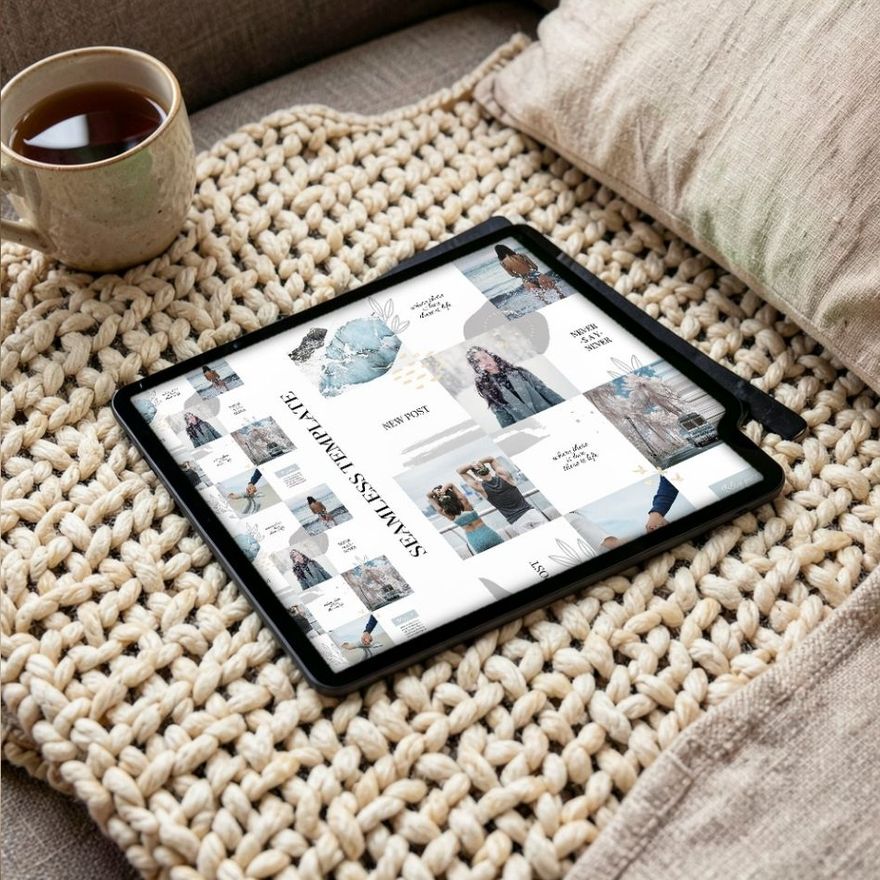
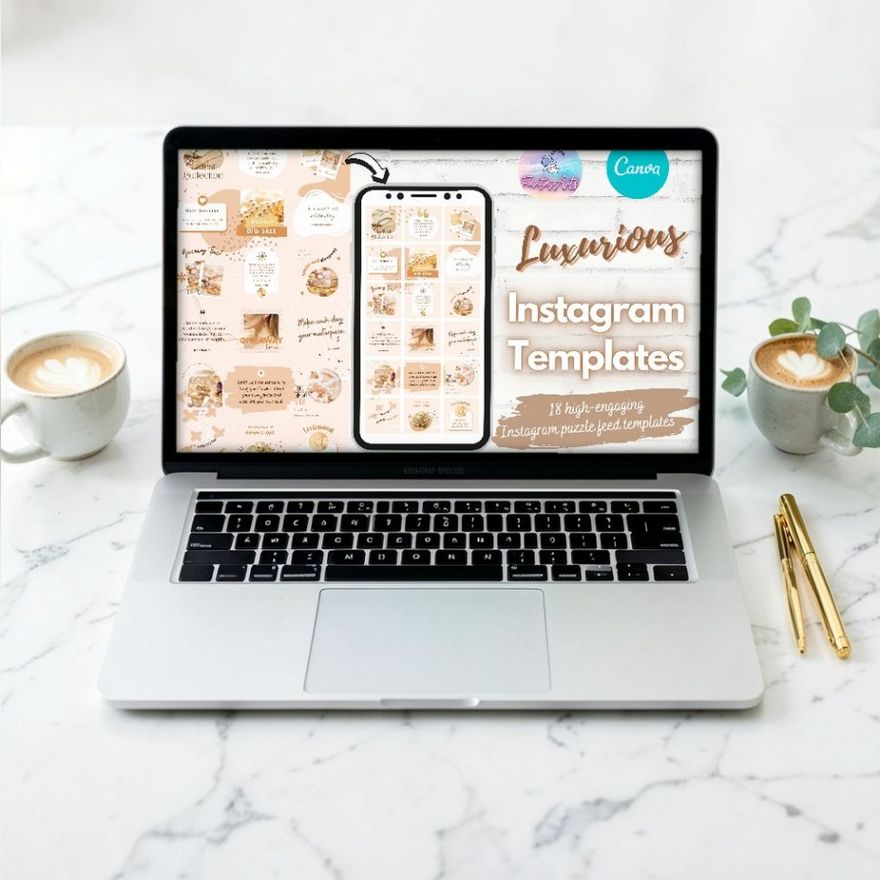
A puzzle feed is one large design cut into post-sized tiles, so that the posts line up on your profile into a single continuous picture. It works when three things are true: the tiles match the shape your profile grid actually shows, every tile makes sense as a post on its own, and you publish in rows of three, starting from the bottom-right corner. If that is more planning than you want, a row or checkerboard pattern gives much of the effect for far less work.
What a Puzzle Feed Is
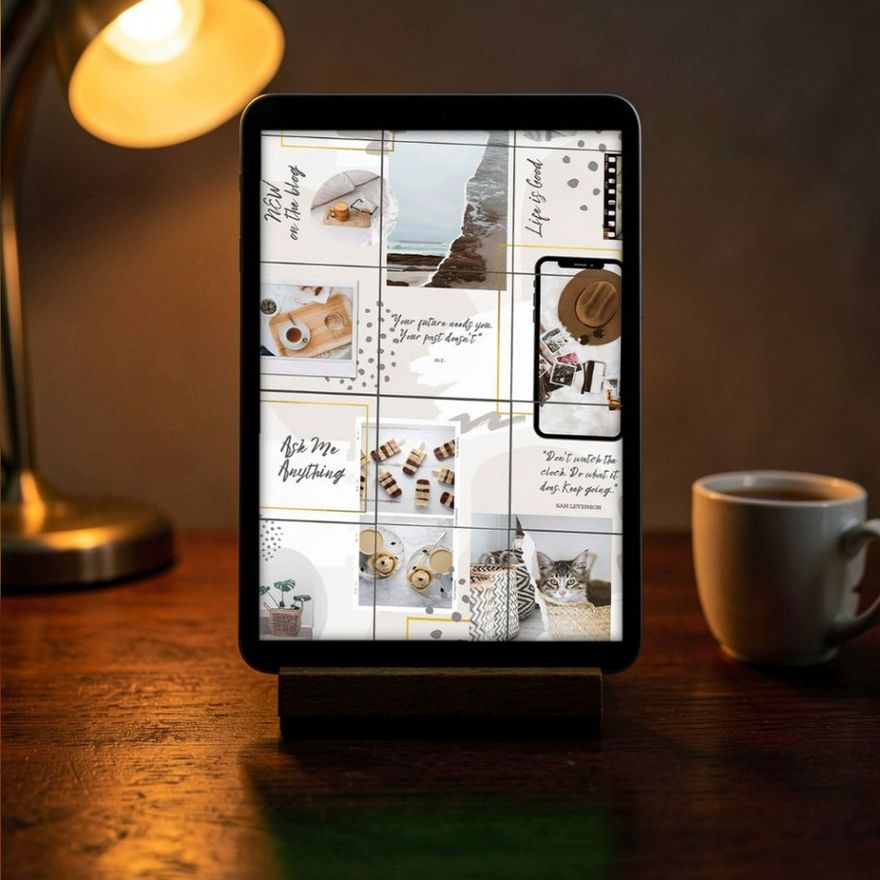
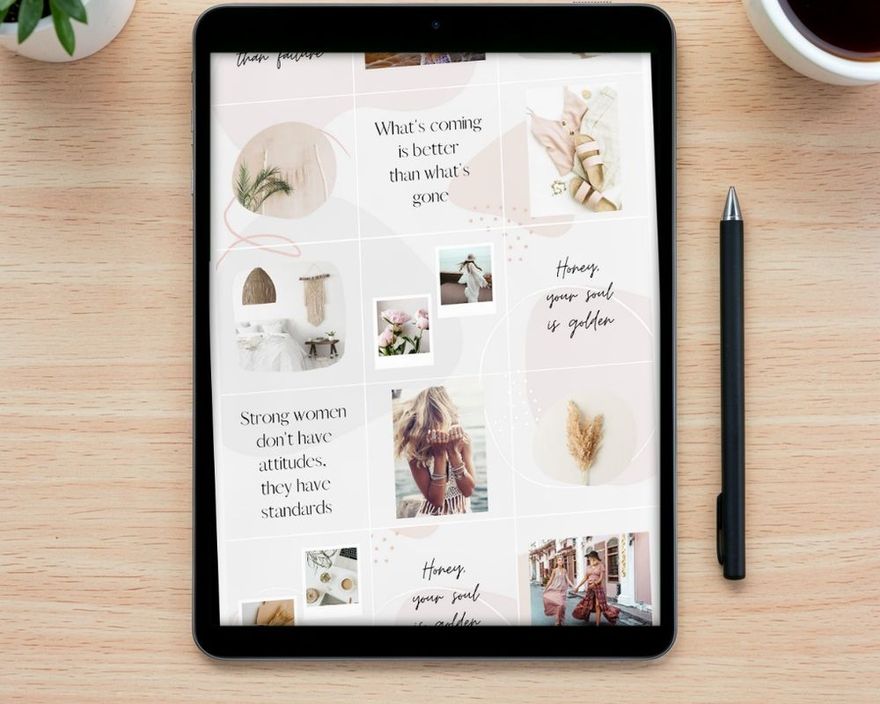
The profile grid is three posts wide. A puzzle feed treats that grid as one canvas: a photo that spreads over two tiles, a band of color that runs through a whole row, a shape that starts in one post and ends in the next.
The effect exists only on your profile. In the home feed, followers meet your posts one at a time, with no neighbors on either side. Every rule below follows from that.
How the Tiles Are Split
The big canvas is three tiles wide and as many rows tall as you plan to post. The right tile size depends on the thumbnails your profile shows.
For years the thumbnails were squares, and puzzle templates were built from 1080 x 1080 tiles. In January 2025 Instagram moved the profile grid to taller 3:4 thumbnails. Each thumbnail is cut from the center of the post, so a tile of a different shape loses a strip on each side.
| Tile you post | Canvas for three rows (nine posts) | What the 3:4 grid shows |
|---|---|---|
| 3:4, 1080 x 1440 | 3240 x 4320 | The whole tile; the seams line up |
| 4:5, 1080 x 1350 | 3240 x 4050 | The middle 1012 pixels of each tile; about 34 pixels hidden on each side |
| Square, 1080 x 1080 | 3240 x 3240 | The middle 810 pixels of each tile; 135 pixels hidden on each side |
Those hidden strips sit exactly where two tiles meet. Between two 4:5 tiles, roughly 68 pixels of the picture go missing. A flat color or a straight horizontal band crosses that gap and nobody notices. A diagonal line, a circle or a face shows a visible jump.
With square tiles the missing strip is 270 pixels, a quarter of a tile, which is why older square puzzle designs look broken on the 3:4 grid. The seams between rows are safer, because the thumbnail keeps the full height of the post.
So if you are building from scratch, use 3:4 tiles at 1080 x 1440. Instagram has accepted that shape for photos and carousels since May 2025, and its Help Center lists 3:4 as the tallest ratio a photo keeps without being cropped; the guide to Instagram post sizes explains each format. With 4:5 tiles, let only simple things cross the vertical seams: color blocks, horizontal stripes, soft textures. A square template is better treated as a set of matching posts than as one picture.
The sets below are all named as puzzle templates. Check each listing for the tile shape and the number of posts it covers.
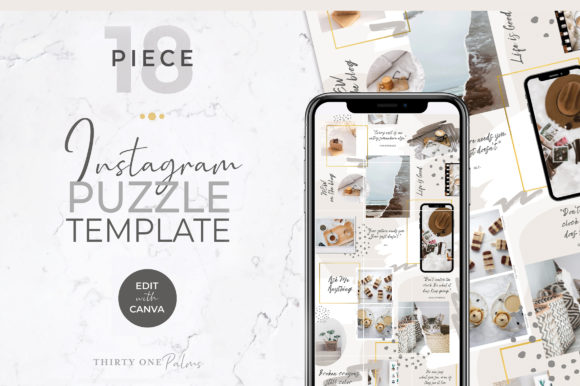
Instagram Puzzle Template for Canva
See the listing ↗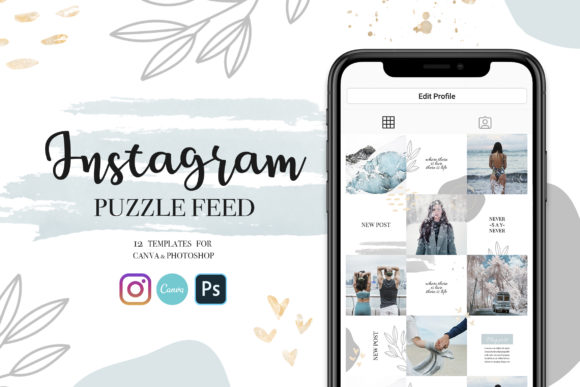
Versatile Instagram Puzzle Template
See the listing ↗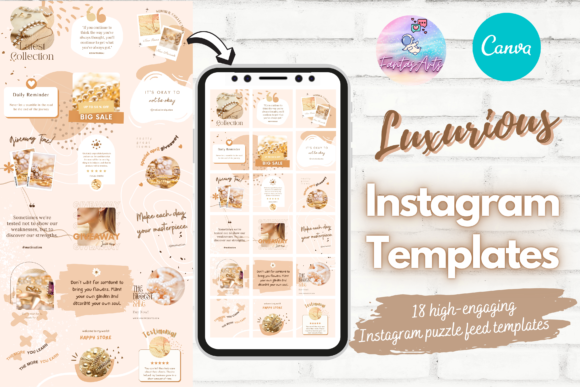
Luxurious Instagram Puzzle Feed Template
See the listing ↗From the collection Instagram Feed & Puzzle Templates. New Creative Fabrica members get 10 free downloads, and any of these can be one of them.
Cutting the Canvas Into Posts
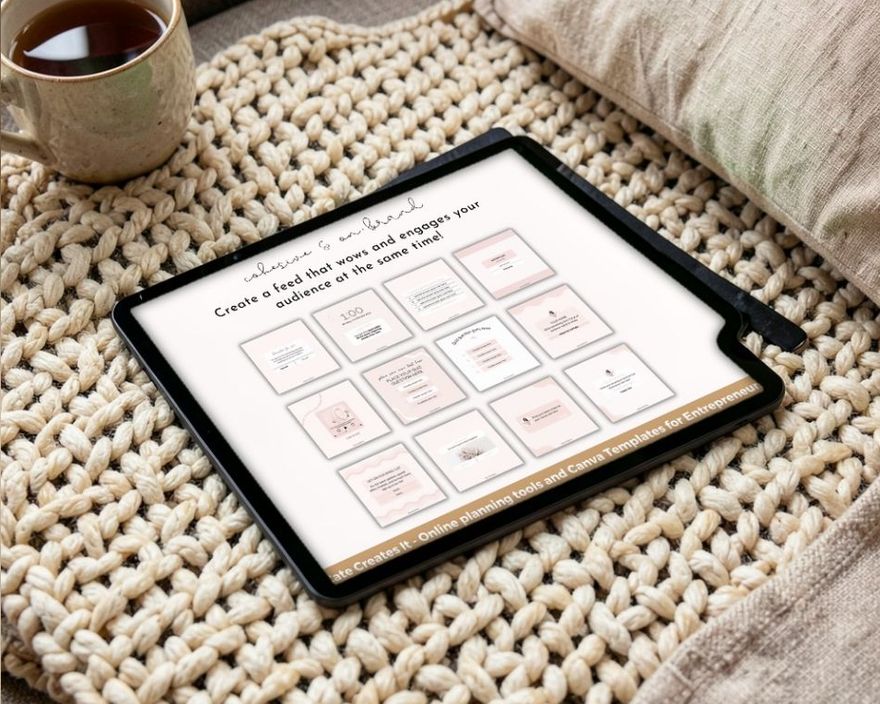
Puzzle templates tend to come in one of two forms. Some are a set of pages, one per tile, with the shared artwork already positioned to continue from page to page. Others are a single wide canvas that you export whole and then cut.
Any grid-splitting app or image editor will cut a wide canvas into tiles. Number them in reading order, left to right and top to bottom. Before anything goes live, put the exported tiles back together in a spare design, three across, and look at the seams.
Every Tile Has to Work Alone
A follower scrolling the home feed sees tile five without tiles four and six. If tile five is the middle of a word or a slice of someone's shoulder, it reads as a mistake.
- Give each tile its own job. A quote, a tip, a product photo, an announcement. The shared artwork links them; it is not the content.
- Keep text and faces away from the seams. Leave at least 140 pixels between anything important and every edge.
- Let backgrounds cross, not messages. Shapes, lines and the edge of a photo can run into the next tile. A headline cannot.
- Write a real caption for each one.
One useful trick: a tile can be a carousel. The profile shows only the first slide, so that slide carries the puzzle artwork and the slides after it carry the content. The structure for those slides is in our guide to Instagram carousel ideas.
Posting Order
The grid fills from the top-left corner, newest post first, and each new post pushes every older one along by one place. So number the tiles in reading order and publish them in reverse.
Take a nine-tile grid: tiles 1, 2 and 3 form the top row, 4, 5 and 6 the middle row, and 7, 8 and 9 the bottom row. Publish 9, 8, 7, then 6, 5, 4, then 3, 2, 1. The bottom-right tile goes first and the top-left tile goes last.
Four things move the picture out of line:
- A partial row. The picture is aligned only when the number of posts above it is a multiple of three, so publish a row's three tiles close together.
- Anything unplanned. An extra post, or a Reel that appears on your main grid, takes a tile like any other.
- Pinning. You can pin up to 3 posts, and pinned posts move to the top of the profile, so pinning shifts everything else. Unpinning sends the post back to its original spot.
- Deleting or archiving a post that sits above the picture or inside it. An archived post is hidden from the profile until you restore it.
Grid Tools That Fix a Slipped Row
Until recently a slipped puzzle could only be fixed by deleting or archiving posts. Two newer tools change that.
Reorder grid. Released in June 2026. Tap and hold a post on your profile, choose "Reorder grid" and drag posts into place. The new order is what every visitor sees. Pinned posts stay fixed at the top, and the tool works in the phone app only. Reports of the launch do not say where the next new post lands in a hand-arranged grid, so assume the top-left corner as before and look at your profile after each post.
Adjust preview. Guides place it in the three-dot menu of a published post: you drag the picture inside the 3:4 frame to choose which part the thumbnail shows. It can re-center a tile whose artwork sits off to one side. It cannot widen the thumbnail, so a square tile still loses its edges. Instagram's Help Center has no page for this option, and the label may differ in your version of the app.
Treat both as repairs. A puzzle that needs dragging back into place after every post is still more upkeep than most accounts want.
Pros and Cons
| For | Against |
|---|---|
| The profile looks designed as a whole the first time someone opens it | The effect is invisible in the home feed |
| A clear visual identity for a launch, a rebrand or a portfolio | Posts must go out in threes and in a fixed order |
| It forces you to prepare nine to twelve posts ahead | One unplanned post, Reel or pin shifts the picture until you reorder the grid by hand |
| Templates do most of the layout work | The layout depends on the thumbnail shape, which Instagram changed in January 2025 |
When to Skip It
Skip the puzzle if you post when something happens: a daily special, new stock, an event photo. Skip it too if Reels are a large part of what you publish, if you like to pin posts, or if you rarely have three posts ready at once.
It suits a narrower set of cases: the first nine posts of a new account, a launch or rebrand, a portfolio that changes slowly. A single-row puzzle is a sensible middle ground: three tiles form one banner, and the feed goes back to normal afterward.
Lighter Alternatives
These layouts make a profile look planned without tying every post to its neighbors.
- Row themes. Each row of three shares a background color or a topic. When a row slips out of line, nothing looks broken.
- Checkerboard. Alternate two kinds of post, such as a text graphic and a photo. Because the grid is three wide, strict alternation always forms a checkerboard, however many posts you add.
- Columns. Rotate three kinds of post in a fixed order: quote, photo, tip. Each kind falls into its own column. A new post moves the columns sideways, and they stay columns.
- One palette, two fonts. The same colors and typefaces on every graphic, in any order. It is the lowest-effort option and it survives any change to the grid. The guide to Canva font pairings helps with the second half.
A pack built around one color or one mood makes the palette approach simple. The three below are each named for a color or a mood.
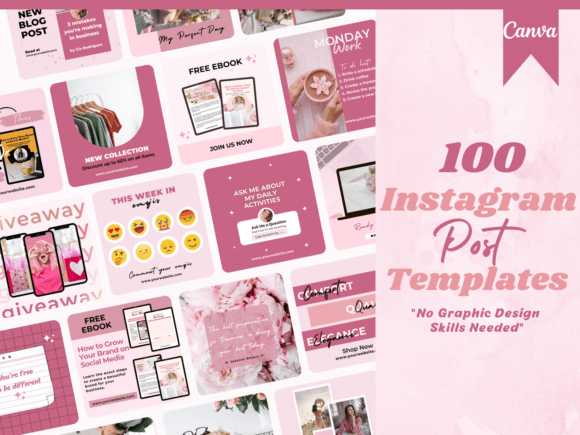
100 Pink Instagram Post Templates
See the listing ↗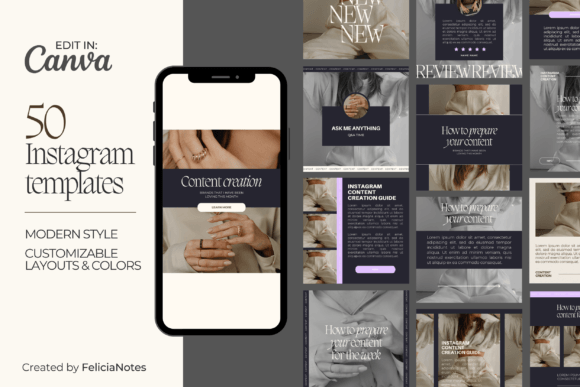
Dark Modern Instagram Post Template
See the listing ↗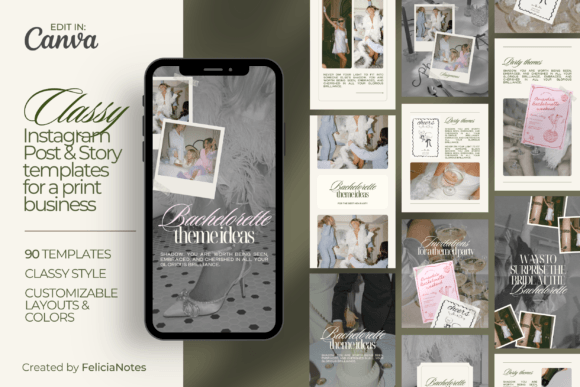
Classy Instagram Post & Story Template
See the listing ↗From the collection Instagram Post Templates. New Creative Fabrica members get 10 free downloads, and any of these can be one of them.
Plan Your First Grid
- Choose the tile size. 1080 x 1440 matches the 3:4 grid exactly.
- Decide how many rows. One or three is plenty for a first try.
- Write what each tile will say. Every tile is a real post.
- Fill a template from the feed and puzzle templates collection, keeping text well inside each tile.
- Export, number the tiles and check the seams in a three-across preview.
- Write the captions and line the posts up in reverse order, a full row at a time.
Step six is far easier when all the posts are finished before the first one goes out. The guide to batching a month of Instagram content shows how to prepare them in one session.
Collections That Fit This Article
Instagram Feed & Puzzle Templates8 hand-picked · open the collection → Instagram Post Templates8 hand-picked · open the collection →